Identify the weak area
Check whether the main issue is low contrast, visible grain or softness. Look at important details such as eyes, lettering and product edges before deciding what needs attention.
Photo enhancement
AI enhancement can make a photo look cleaner, but a sharper-looking result is not always a more faithful one. Start with the best original you have, then compare the edited image closely before using it.

How it works
A useful edit addresses a specific problem. Inspect the original first, make a restrained change, and compare the result at the size where you will use it.
Check whether the main issue is low contrast, visible grain or softness. Look at important details such as eyes, lettering and product edges before deciding what needs attention.
Aim to improve the problem you found rather than intensifying every detail. Noise reduction can smooth grain; sharpening can define edges; tonal changes can make a dim subject easier to see.
Zoom in to check texture and zoom out to judge the whole photo. If faces look artificial, text changes shape or edges acquire bright outlines, the edit may be too strong.
Related tasks
Enhancement is not a substitute for every image edit. These related Picwish guides separate general improvements from more specific tasks.
Reality check
The distinction matters most when the photo must represent a person, product or document accurately.
Reasonable improvement to assess
Grain in a dim photo may appear smoother.
Limit to keep in mind
Aggressive smoothing may erase fabric, hair or skin texture.
Reasonable improvement to assess
Existing outlines may look more defined.
Limit to keep in mind
Sharpening cannot reliably reconstruct detail that was never captured.
Reasonable improvement to assess
An enlarged version may look more presentable at a larger display size.
Limit to keep in mind
New-looking texture may be estimated rather than true to the source.
Reasonable improvement to assess
Tonal adjustments may make the subject easier to distinguish.
Limit to keep in mind
Areas recorded as solid black or white may contain no recoverable detail.
Reasonable improvement to assess
A restrained edit may make features easier to see.
Limit to keep in mind
Strong processing can alter a person's appearance.
Reasonable improvement to assess
Clear lettering may become easier to read.
Limit to keep in mind
Tiny or heavily blurred characters must be verified against the original.
Practical uses
Different subjects call for different checks. Keep an untouched copy so you can decide whether the edited version is genuinely better.
An indoor portrait looks grainy, but the expression and skin texture matter.
Favor modest cleanup and compare facial features with the source before sharing.
picwish photo enhancerA scanned snapshot has a soft subject and little fine detail.
Check whether the face becomes clearer without acquiring invented-looking features.
picwish unblur imageA product photo needs a cleaner presentation, but its outline must stay accurate.
Assess image quality separately from any decision to change the backdrop.
picwish background removerA still frame looks soft and the full clip also needs attention.
Treat a single-frame improvement as a photo edit, not proof that the video will improve.
picwish video enhancerVisual guide
An attractive preview is only a starting point. Judge an enhancement by comparing fine details, not just overall brightness and apparent sharpness.
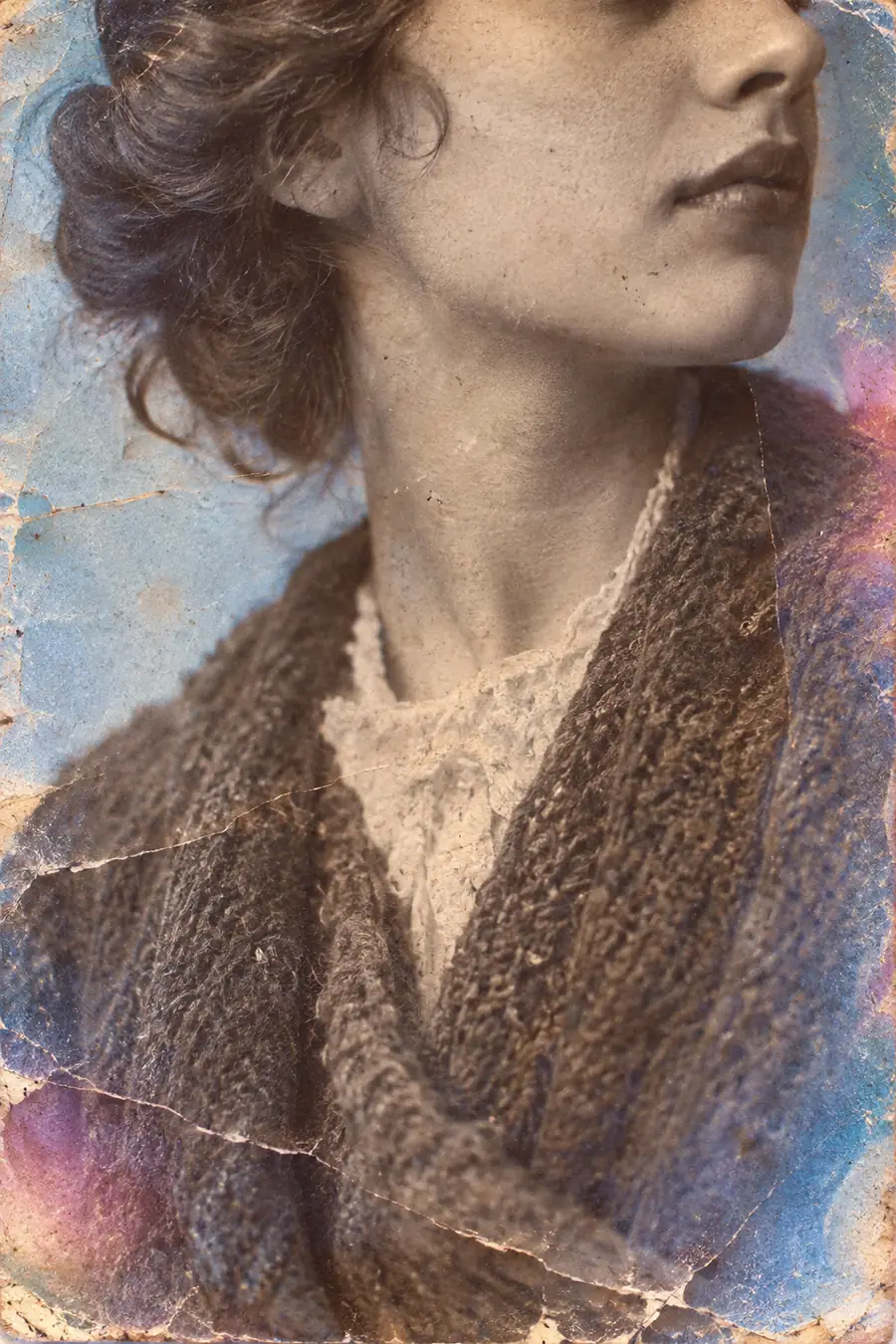
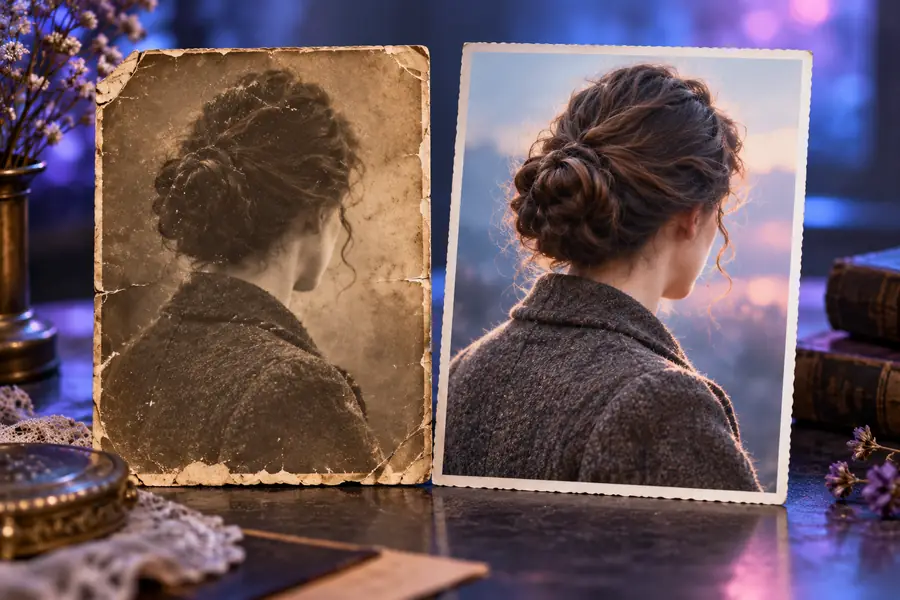
These images illustrate what to inspect; they are not a verified before-and-after result. In your own photo, compare eyes, hair, skin, lettering and object edges against the untouched file.
Next step
Describe the photo's main problem, review the resulting image against your original and keep the version that preserves important details. The linked editing service is separate from Picwish; available tools and access terms may differ.
Common questions
AI photo enhancement generally aims to improve the visible quality of a still image, such as its apparent sharpness, noise or tonal balance. The outcome depends on the original photo, so compare the edited version with the source rather than assuming every detail has been restored.
It may make some edges appear clearer, but it cannot reliably recover information the camera did not capture. Be especially cautious with faces, signs and other details where an inaccurate reconstruction matters.
An enlarged image can look smoother or more detailed at a glance. Some of that detail may be estimated, so check important textures and shapes against the original before relying on it.
Compare the eyes, hairline, skin texture and shape of facial features at full size. If those features change noticeably or the skin looks unnaturally smooth, prefer a gentler edit or the original.
No. Enhancement concerns the appearance of the image, while background removal separates a subject from its surroundings. Decide which problem you need to solve before choosing an editing workflow.