Choose and prepare the photo
Pick the clearest version with the complete subject in frame. Note small details that must survive, such as a handle, loose hair, or a thin strap.
Photo editing guide
A picwish background remover workflow begins before the background disappears: choose a clear image, decide what must stay, and inspect the result at full size. This guide shows what to check rather than assuming every automatic cutout is finished.
Before trying Picwish, identify the subject, its outline, and the background you want removed. A distinct silhouette gives you a better starting point for reviewing the cutout.
Removing a background will not reveal the part of a product or person that was outside the original frame.
WorkaroundStart with a photo that includes the entire subject and some space around its edges.
Motion blur and shallow focus can make it difficult to tell where the subject ends, even when most of the background is simple.
WorkaroundChoose a sharper source image or plan to refine the boundary afterward.
Glass, mesh, and fine hair may contain both subject and background pixels. A single automatic pass may remove or retain the wrong areas.
WorkaroundInspect those regions closely and keep the original available for comparison.
Use the same review sequence whether the subject is a portrait or a product. The important step is checking the output, not just seeing the background vanish.
Pick the clearest version with the complete subject in frame. Note small details that must survive, such as a handle, loose hair, or a thin strap.
Describe the subject and what should be removed. For a picwish background remover task, make clear that the subject should remain unchanged rather than asking for a new scene.
View the result against a contrasting background. Check gaps, semi-transparent areas, shadows, and any colored fringe left by the original setting.
If the cutout holds up at full size, place it on the intended background. If parts are missing, return to the source photo or refine the edge before using it elsewhere.
Background removal changes what surrounds a subject. These nearby Picwish topics address image quality and detail when the cutout itself is not the only concern.
Explore overall photo improvement when the subject looks dull or lacks clarity.
Consider blur-focused editing when a soft source makes its boundaries hard to judge.
Review image-specific blur issues before treating a cutout as a finished asset.
A cutout is useful only if the retained subject still looks believable on the background where it will appear.
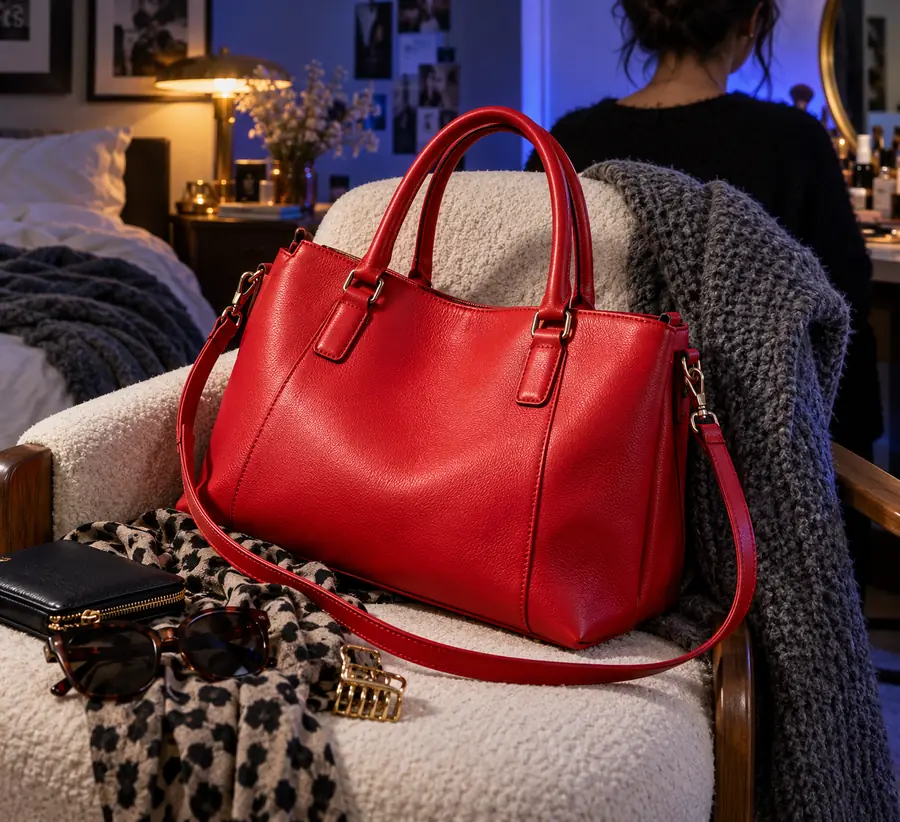

These images illustrate what to compare; they do not document a verified before-and-after edit of the same photo. Inspect your own output for lost details and edge halos.
The right finish depends on where the image will be used. Picwish background removal is one stage; the destination background determines the final checks.
Keep a cutout
Separate the subject from its surroundings.
Add a new background
Place the subject in a chosen setting.
Keep a cutout
Inspect the edge against contrasting colors.
Add a new background
Inspect the whole composition at its intended size.
Keep a cutout
Decide whether to preserve or remove the original shadow.
Add a new background
Check whether the shadow fits the new surface and light.
Keep a cutout
Look for traces of the old background around the outline.
Add a new background
Check whether those traces clash with the new scene.
Keep a cutout
Verify hair, straps, handles, and open spaces.
Add a new background
Verify those details remain visible on the replacement.
Keep a cutout
Keep the original beside the cutout for comparison.
Add a new background
Judge the completed image in its actual placement.
A background remover can produce a convincing first pass while leaving a problem that only appears in the final layout. Match the failure to the next task.
A pale product nearly disappears against the replacement background.
Check contrast and product clarity separately; a cleaner cutout alone will not make the subject more legible.
picwish photo enhancerSoft focus makes stray hair blend into the original setting.
Review the source sharpness before repeatedly cutting the same uncertain edge.
picwish unblur imageA small subject looks flat after it is placed in a brighter composition.
Assess lighting and image detail as a separate editing decision.
picwish ai photo enhancerA still-image cutout is mistaken for a fix to soft moving footage.
Treat footage quality as its own problem rather than applying a photo workflow to every frame.
picwish video enhancerDescribe the subject to keep and the background to remove, then judge the result against its intended destination. Picwish editing guidance is most useful when you compare the output with the original instead of relying on a small preview.
Zoom in on the subject's outline and compare it with the original photo. Look for missing details, leftover background, and colored halos, then check the result where you intend to use it.
Fine strands and transparent surfaces can contain a mix of subject and background color. That makes their boundary less definite than the edge of an opaque object, so they deserve a closer review.
No. A cutout changes the surroundings, but it does not restore detail that is absent from the source photo. Start with a sharper image when possible and treat blur as a separate issue.
Keep a cutout when you need flexibility to place the subject later. Add the intended background when you are ready to judge contrast, lighting, and whether the subject belongs in the completed composition.