Add the source image
Upload the photo you want to improve, keeping the original file available for comparison.
Online photo editing
PicWish brings common image cleanup tasks into an online editing workflow. Upload a photo, choose the result you want, and review the output before saving or continuing in the editor.

Choose a workflow
Start with the image problem in front of you, then move to the focused workflow that best matches it.
Use this focused workflow when a soft, noisy, or low-detail image needs a clearer finish.
Try the unblur route when lost edge definition is the main problem in a photo.
Choose background removal when the subject needs to stand apart from its original setting.
See the mobile-oriented option when your editing starts on an iPhone.
Limits and edges
An online editor can simplify routine image work, but it cannot recover every detail or make every creative decision correctly.
When a source image is heavily compressed, tiny faces, text, and fine textures may remain uncertain after enhancement.
WorkaroundUse the highest-resolution original available and check the result at full size before publishing.
Strong edits can make skin, edges, or product surfaces appear overly smooth or artificial.
WorkaroundCompare the edited result with the original and choose a lighter treatment when important texture has been lost.
Busy scenes, transparent objects, hair, and overlapping items can make selections or background work less precise.
WorkaroundUse a simpler source image when possible, then inspect edges around the subject before export.
The online route is suited to focused improvements, not unrestricted layer-based art direction or detailed manual retouching.
WorkaroundBreak the job into smaller edits and finish complex composition work in a dedicated editor.
Simple workflow
The basic PicWish flow keeps the decision point close to the image, so you can assess the output instead of guessing from a description.
Upload the photo you want to improve, keeping the original file available for comparison.
Select the edit that matches the problem, such as clearer detail, a cleaner background, or a more polished portrait.
Inspect edges, faces, text, and texture at a useful size before keeping the edited version.
A before-and-after view is useful because a successful edit should improve the subject without removing the details that make the image believable.
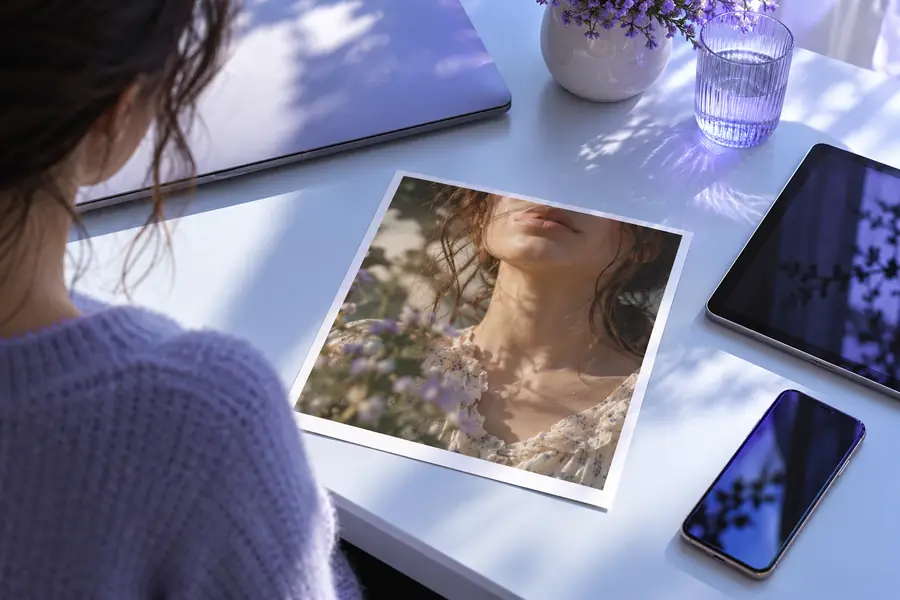
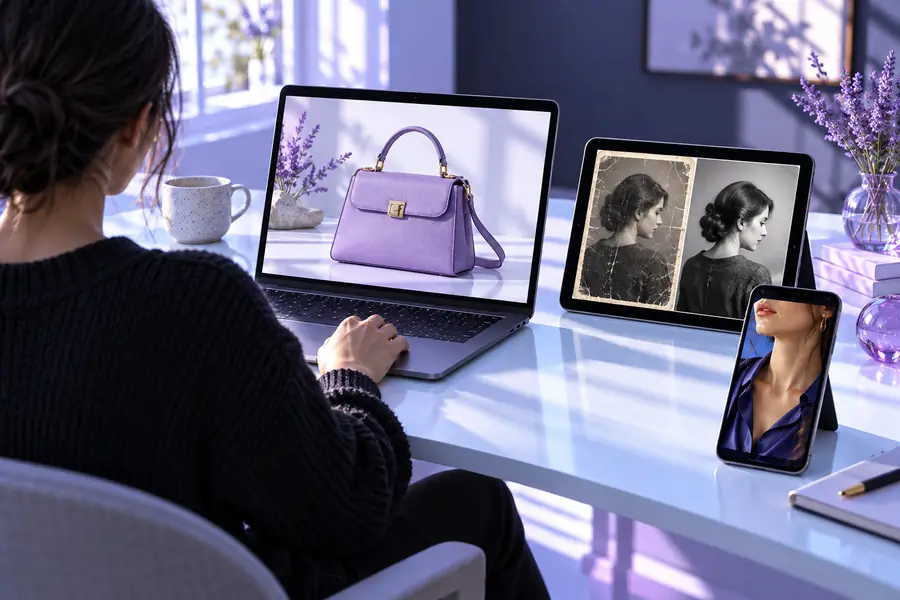
Compare detail, edges, and texture—not just brightness.
Practical use cases
Different image problems call for different starting points. These examples show where an online workflow can fit without turning a small edit into a large project.
A product photo looks dull or soft after a quick phone capture.
Improve clarity and presentation before placing the item on a listing.
picwish photo enhancerA portrait needs a cleaner subject, better separation, or a more polished finish.
Prepare a stronger image for a post, profile, or campaign draft.
picwish background removerAn older snapshot has blur, noise, or faded-looking details.
Test a careful enhancement while preserving the original for comparison.
picwish unblur imageAn edit begins on a phone and needs to continue without moving to a desktop first.
Use a browser-based route that fits a mobile-first capture and review habit.
picwish for iphoneBring one image into the PicWish workflow and focus on the change that matters most. Review the result carefully, keep the original close, and continue only when the edit looks right for its intended use.
Common questions
PicWish online is a browser-based route for working on common photo editing tasks. It lets you bring in an image, choose a focused improvement, and review the result in an online workflow.
A phone browser can be a practical starting point when your image is already on a mobile device. For a workflow specifically oriented around iPhone use, see the PicWish for iPhone page.
Images with reasonable resolution and visible subject detail generally give you a better basis for review. Very small, heavily compressed, or badly blurred files may limit how convincing the final result can be.
Yes, it can fit product-photo cleanup when the goal is a clearer or more presentable image. Inspect fine edges, labels, and surfaces carefully so an edit does not remove useful product detail.
No image editor can reliably reconstruct detail that was never captured or has been heavily lost. Use the clearest original available, compare the result with the source, and keep expectations realistic.