Prepare the source image
Choose the clearest original available and check that the subject is visible. Keep a copy of the source so you can compare the edited version later.
This guide explains how to use picwish online from the first upload to the final review. Prepare a suitable image, make one focused edit, and inspect the result before saving or sharing it.
Use this three-stage process to keep an online image edit controlled, easy to review, and repeatable.
Choose the clearest original available and check that the subject is visible. Keep a copy of the source so you can compare the edited version later.
Open the image workflow, add your file, and select the edit that matches your goal. Start with one change rather than combining several unrelated adjustments.
Inspect faces, edges, text, shadows, and small details at a useful zoom. If the result changes something important, adjust the task or return to the original.
Use this companion guide when you want a shorter introduction to the main editing workflow.
See how the browser-based surface fits different image editing tasks and working habits.
Compare enhancement-focused editing when the main goal is improving clarity, detail, or overall image quality.
Most disappointing results come from the source file, an unclear goal, or skipping the review step. Use this table to diagnose the problem before trying again.
Common problem
The original image is already low resolution or heavily compressed.
Practical fix
Use the largest clean source available and avoid repeatedly saving a compressed copy.
Common problem
The instruction or selected task is too broad for the image.
Practical fix
State the intended change clearly and keep the requested edit limited to one purpose.
Common problem
Hair, product outlines, transparent areas, or fine details are difficult to separate.
Practical fix
Inspect the boundary at a closer zoom and try a cleaner source with stronger contrast.
Common problem
Small lettering was altered during enhancement or resizing.
Practical fix
Keep the original for reference, enlarge the working view, and check every text area before export.
Common problem
Several edits were applied without comparing against the original.
Practical fix
Undo the last change, reduce the scope of the task, or restart from the untouched source.
Common problem
The image was exported without checking its dimensions, crop, or intended destination.
Practical fix
Confirm the framing and visual details before using the result in a listing, post, document, or message.
A product photo has a distracting background or lacks visual consistency across a small catalog.
Work from the cleanest product shot, make one focused adjustment, and compare the result with the original before publishing.
picwish background removerA portrait needs more visible detail while keeping skin, hair, and facial features believable.
Choose a face-focused workflow, inspect the eyes and hair closely, and keep the source file available for comparison.
picwish ai photo enhancerA phone image is useful but has blur, noise, or uneven detail after being captured quickly.
Upload the original phone file rather than a messaging-app copy, then check whether the enhancement preserves natural texture.
picwish for iphoneA social post or article needs a cleaner image but the available asset requires more than a simple crop.
Describe the intended change precisely, review small details, and keep the edited image aligned with the surrounding content.
picwish photoOnce the basic workflow feels familiar, use comparison and controlled iteration to make decisions instead of guessing from a single preview.

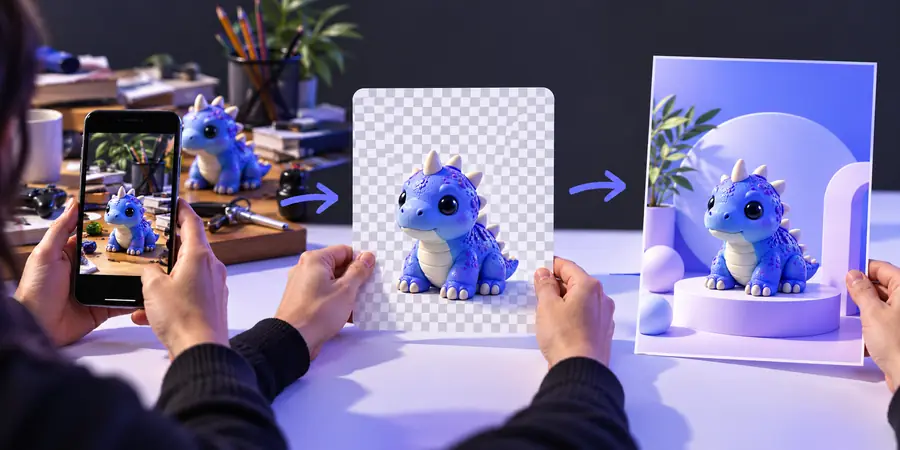
Compare at the same zoom and keep the original visible.
Bring one clear image and one specific goal to the workflow. A focused first pass makes it easier to judge the result, identify a problem, and decide whether another edit is worthwhile.
Begin with the clearest image you have and decide what you want to change before uploading it. Choose one focused editing task, review the result carefully, and keep the original available for comparison.
Use the largest clean source available, preferably one that has not been repeatedly compressed by messaging or social platforms. A visible subject, good contrast, and enough detail give the workflow more useful information.
The requested change may be too broad, or several edits may have been applied without a comparison step. Return to the original, narrow the goal, and inspect faces, hair, edges, text, and shadows before accepting the result.
Yes, first compare the result with the untouched source to identify exactly what changed. Try a more specific task or restart with the original rather than repeatedly editing an already altered copy.
Review it at a closer zoom and check the crop, subject boundaries, facial details, small text, and overall texture. Then confirm that the dimensions and framing suit the place where you plan to use it.