Choose the source image
Select the original photo rather than a screenshot or repeatedly compressed copy. Portraits, product shots, and everyday photos are easiest to assess when the subject is visible.
Focused image work
Picwish photo enhancer is a focused way to improve soft, low-detail, or uneven photos without starting with a broad editing workspace. Bring one image, describe the result you want, and hand it off for enhancement.
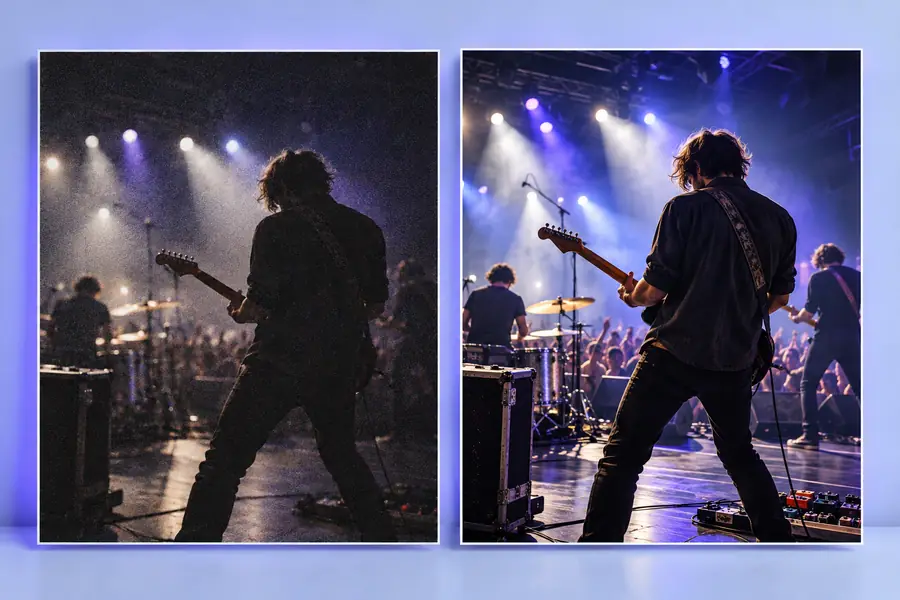
Related tools
Choose the more specific route when the main problem is image quality. These nearby pages cover different kinds of image work.
Use this route when motion blur or soft edges are the main problem in an otherwise useful image.
Use this focused option when separating a subject from its background matters more than improving detail.
Use this route for improving moving footage rather than processing a single still photo.
Explore the AI-focused route when you want enhancement framed around automated image improvements.
Use this page when your search is specifically about recovering clarity from a blurred image.
Know the edges
A focused enhancer is useful because it narrows the job, but it is not a complete replacement for every editing workflow.
If an image is severely pixelated, compressed, or out of focus, enhancement can only estimate some detail rather than recover the original scene.
WorkaroundStart with the largest, cleanest source available and compare the result at its intended display size.
This route is aimed at improving image quality, not building layered designs, arranging multiple elements, or creating a finished marketing layout.
WorkaroundPrepare the composition separately, then use enhancement as the final image-quality pass.
Harsh lighting, closed eyes, blocked faces, and extreme motion may remain noticeable after processing.
WorkaroundUse a better source where possible, or pair enhancement with a narrowly focused unblur or retouching workflow.
Simple workflow
Keep the first pass specific. A clear source and a concrete goal make it easier to judge whether the enhanced image is actually better.
Select the original photo rather than a screenshot or repeatedly compressed copy. Portraits, product shots, and everyday photos are easiest to assess when the subject is visible.
Describe what needs attention, such as soft facial details, weak texture, or a low-detail product image. Avoid asking for unrelated changes in the same instruction.
Compare the enhanced image with the source at the size where it will be used. Look for clearer edges and useful detail, not artificial texture or an overprocessed finish.
Choose the right route
The distinction is about intent: one route starts with image quality, while a general editor starts with a wider set of possible changes.
Picwish photo enhancer
Improve clarity, detail, and perceived image quality
General photo editor
Make a broad range of manual or creative edits
Picwish photo enhancer
A single photo that already has the right subject and composition
General photo editor
A photo that may need cropping, layout, text, or layered changes
Picwish photo enhancer
Explain what should look clearer or more defined
General photo editor
Specify a sequence of edits, adjustments, or design changes
Picwish photo enhancer
Does the image look cleaner without losing natural detail?
General photo editor
Does the complete composition match the intended design?
Picwish photo enhancer
Improving visible facial detail in a soft portrait
General photo editor
Retouching, cropping, adding text, or combining several elements
Picwish photo enhancer
Making product edges and surface detail easier to inspect
General photo editor
Building a catalog card, advertisement, or social post
Picwish photo enhancer
Switch when the remaining issue is layout or a separate editing task
General photo editor
Switch here when image quality is the main unresolved problem
Visual check
A before-and-after comparison is most useful when it preserves the original subject and makes the improvement easy to inspect.
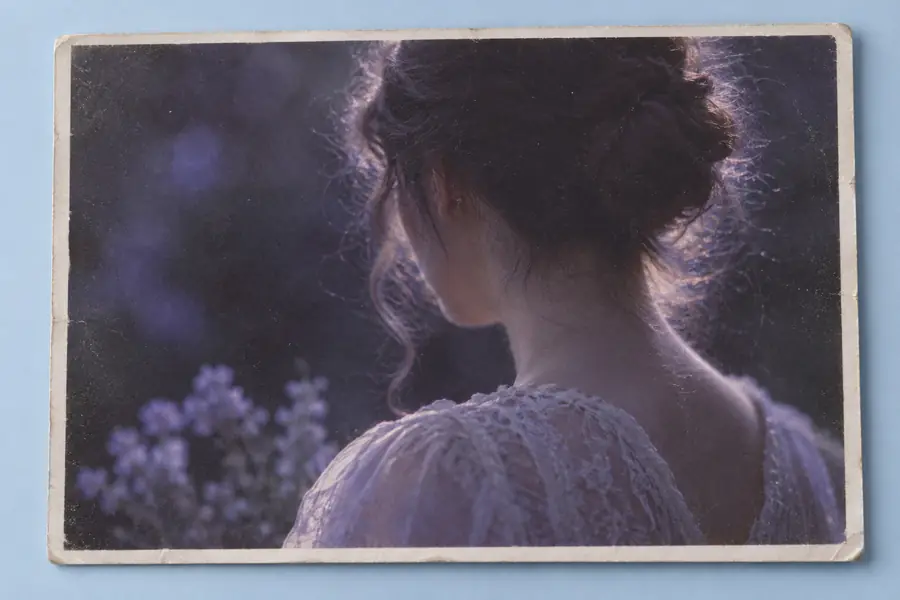
Compare eyes, edges, and fine texture at the same viewing size.
Practical uses
The best use cases have a clear quality problem and a specific reason to keep the original subject, framing, or product identity.
A personal portrait looks soft after being cropped or shared through a messaging app.
A clearer version can be easier to print, share, or use as a profile image when the source still contains useful subject detail.
picwish unblurA product photo has a usable composition but weak edges and limited visible surface detail.
Enhancement can make the item easier to inspect before the image is placed into a catalog or storefront layout.
picwish background removerAn older still image needs a quality pass before it becomes part of a post, article, or visual story.
A cleaner source gives later design work more usable material without changing the basic subject.
picwish ai photo enhancerNext image pass
Use a focused enhancement request when the subject and composition are already right but the image needs more visible detail. Start with one source and one clear improvement goal.
Common questions
Picwish photo enhancer is intended for improving the visible quality of a still image, such as a soft portrait or low-detail product photo. It is most useful when the subject and composition are already suitable but the image needs a clearer presentation.
It may improve a mildly soft image, but it cannot reliably recreate detail that was never captured. For severe blur, use the cleanest original available and set a realistic expectation for the result.
No. The photo enhancer route begins with image quality, while a general editor is better suited to cropping, layered design, text, and broader composition changes. Choose the focused route when clarity is the main issue.
Use the largest, least-compressed version of the photo you have, with the main subject visible and enough detail to inspect. A screenshot or repeatedly re-saved copy gives the enhancement less useful source information.
It can make sense to improve a subject image before a separate background task when the subject itself is soft or difficult to inspect. If background separation is the main problem, use the dedicated background-removal route instead.